This document is intended to help you complete your site's roster data templates before making your initial sync with Next Gen Math.
We encourage you to read the instructions in this document thoroughly before submitting your files for upload.
🔍 Ensure you review these critical points before starting.
🏫 One School per Template Set:
Each template set must contain data for only one school.
-->If you are submitting data for multiple schools, you must complete a separate set of templates for each school.
💾 File Format Requirement
All templates must be saved in CSV (Comma-Separated Values) format.
✅ Required Files
The following CSV files are required for each school:
-
Students.csv
-
Teachers.csv
- Sections.csv
- Enrollments.csv
📝 Optional File
- SchoolAdmins.csv
⚠️File Naming Standards
File names must exactly match the names listed above, including capitalization. Any file that does not conform to the required naming convention will not be processed.
Two Approaches to Completing Native Rostering | |
| Option 1 | Option 2 |
| Export students, teachers, sections, and enrollments from your SIS using the required field headers that are detailed below. | Download the template files ZIP and populate the data either manually or by any other method of your choosing. |
|
Required Field Headers (As noted Above)
|
⬇️Click Below to Access the Templates⬇️
|
📋Completing the Templates
The tables below specify which headers are required and which are optional for each template.
⚠️ Note:
Columns highlighted in 🔵 blue within the template screenshots are required and must be included and completed in your template. Columns not highlighted are optional and do not need to be included for a successful sync.
For further details, please refer to the corresponding template details tables.
👩🎓 Students.csv – Student Data Template
Guidance on entering student details.
📋The Students.csv file contains a list of all students to be added to the system. Each student should be represented by a single, unique row.

| Header | Required | Unique | Notes |
|---|---|---|---|
| last_name | Yes | No | |
| first_name | Yes | No | |
| student_id | Yes | Yes | Typically assigned by school or district. This value will be used to link the student to an enrollment. Fictitious Student IDs are permitted if you are unable to provide factual IDs. |
| state_id | No | Yes | Can typically be obtained from CAL Pads. |
| grade | Yes | No | This value must be numeric. |
| No | Yes | Next Gen Math does not send emails to students. Emails are only used as an alternative identifier during the internal syncing process. | |
| username | No | Yes | Usernames can be provided for the student via the template or have a memorable one generated during the first sync (this is recommended if you are unsure what to enter). |
| password | No | Yes | Passwords can be provided for the student via the template or have a memorable one generated during the first sync (this is recommended if your site does not already have a strong password system in place. (i.e. all passwords are identical). |
| override_username | No | No | Optional. Enter Y to apply the username value from this row to an existing user. Leave blank if the current username should stay unchanged. |
| override_password | No | No | Optional. Enter Y to apply the password value from this row to an existing user. Leave blank if the current password should stay unchanged. |
👨🏫 Teachers.csv – Teacher Data Template
Instructions for accurately recording teacher information and assignments.
📋The Teachers.csv file contains a list of all teachers to be added to the system. Each teacher should be represented by a single, unique row.

| Header | Required | Unique | Notes |
|---|---|---|---|
| last_name | Yes | No | |
| first_name | Yes | No | |
| teacher_id | Yes | Yes | Typically assigned by school or district. This value will be used to link the teacher to their sections. |
| Yes | Yes | ||
| username | No | Yes | Usernames can be provided for the teacher via the template or have a memorable one generated during the first sync (this is recommended if you are unsure what to enter). |
| password | No | Yes | Passwords can be provided for the teacher via the template or have a memorable one generated during the first sync (this is recommended if your site does not already have a strong password system in place. (i.e. all passwords are identical). |
| override_username | No | No | Optional. Enter Y to apply the username value from this row to an existing user. Leave blank if the current username should stay unchanged. |
| override_password | No | No | Optional. Enter Y to apply the password value from this row to an existing user. Leave blank if the current password should stay unchanged. |
🏫 Sections.csv – Course Sections Template
How to define classes, subjects, and instructional periods for your school.
📋The Sections.csv file defines the individual sections or classes offered within the school. Each section must be assigned to at least one teacher and should include only math sections. If a teacher is assigned to multiple sections, each section must be listed in a separate row and linked to the teacher using their unique Teacher ID.
⚠️ Note:
For elementary schools where each teacher is assigned a single class or homeroom, you must enter a record for each teacher that includes their unique Teacher ID and the grade they are teaching. To ensure students appear under a teacher’s account, each student must be linked to at least one section assigned to that teacher.

| Header | Required | Unique | Notes |
|---|---|---|---|
| section_id | Yes | Yes | The unique identifier for the section is used to link the section to a teacher as well as any enrollments. Can be populated by the SIS or manually. |
| name | No | No | Used to identify the section. (e.g. 6th Grade Math, Algebra I, Algebra II) |
| grade | Yes | No | This value must be numeric. |
| period | No | No | |
| teacher_id | Yes | No | Primary teacher's ID. This value must match the ID of a teacher from the teacher's CSV. |
| teacher_id_2 | No | No | First co-teacher's ID. This value must match the ID of a teacher you wish to also have access to this section's data. |
| teacher_id_3 | No | No | Second co-teacher's ID. This value must match the ID of a teacher you wish to also have access to this section's data. |
| teacher_id_4 | No | No | Third co-teacher's ID. This value must match the ID of a teacher you wish to also have access to this section's data. |
🧑🤝🧑 Enrollments.csv – Student Enrollment Template
Steps for mapping students to their assigned classes and sections.
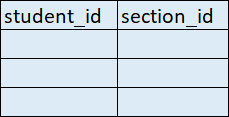
The Enrollments.csv file defines the association between students and the sections to which they are assigned.
⚠️ Note:
If a student is enrolled in multiple classes or sections, each enrollment must be recorded as a separate row. For example, if a student is taking math in both Period 1 and Period 5, there should be two separate entries—each linking the student to the appropriate section.
| Header | Required | Unique | Notes |
|---|---|---|---|
| student_id | Yes | No | The student's ID is entered in the student's CSV. This value is used to roster the student to the given section. |
| section_id | Yes | No | The section's ID is entered in the section's CSV. This value is used to roster the student to this given section. |
🛡️ SchoolAdmins.csv – School Administrator Template (Optional)
Used to designate school-level administrators with access to relevant systems or data.
📋The SchoolAdmins.csv file lists all school administrators to be added to the system. Each administrator should be represented by a single, unique row.

| Header | Required | Unique | Notes |
|---|---|---|---|
| last_name | Yes | No | |
| first_name | Yes | No | |
| staff_id | Yes | Yes | Typically assigned by school or district. This value will be used as the unique identifier for the admin. |
| Yes | Yes | ||
| username | No | Yes | Usernames can be provided for the school admin via the template or have a memorable one generated during the first sync (this is recommended if you are unsure what to enter). |
| password | No | Yes | Passwords can be provided for the school admin via the template or have a memorable one generated during the first sync (this is recommended if your site does not already have a strong password system in place. (i.e. all passwords are identical). |